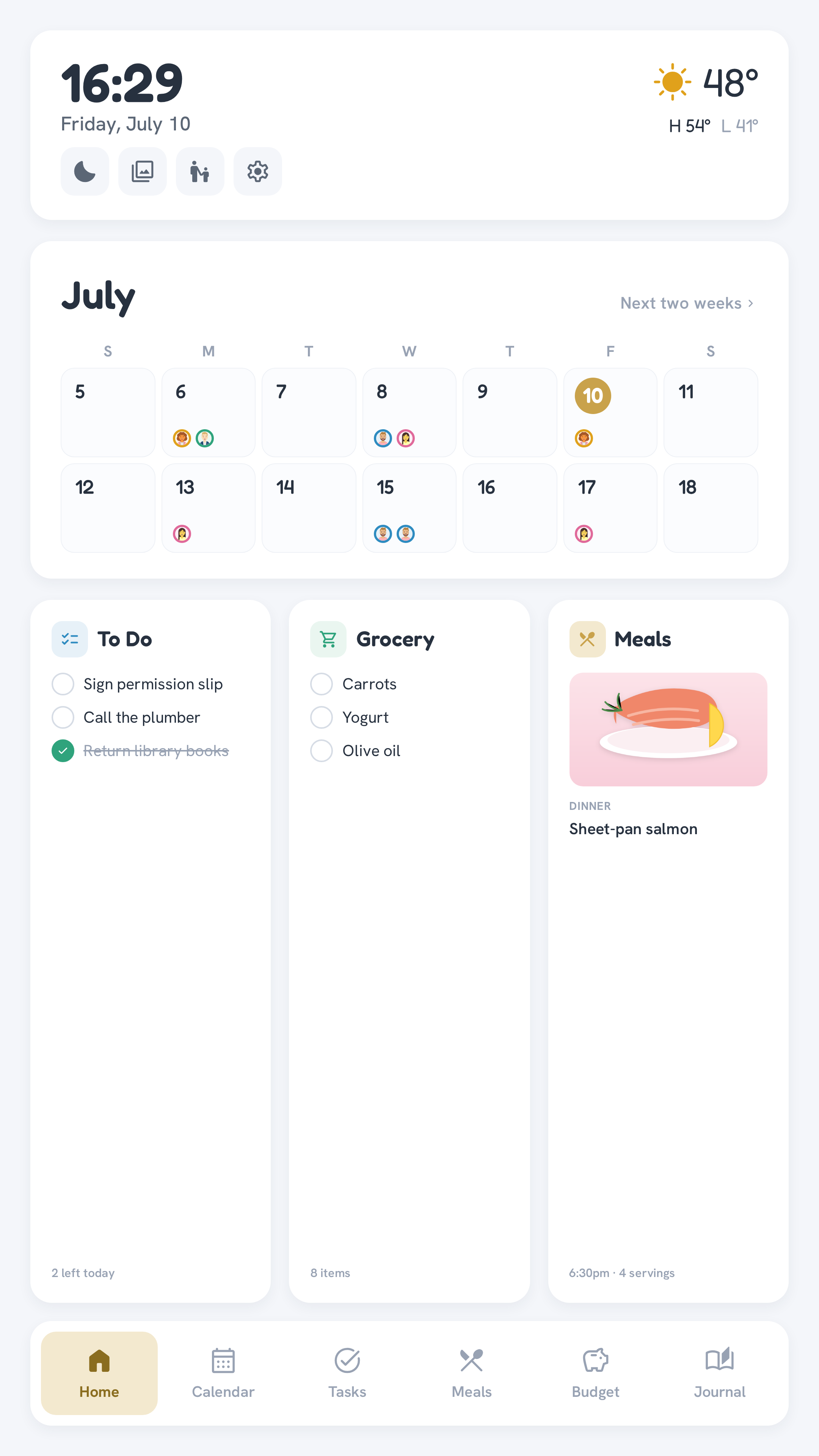
Kiosk setup
Turns a Debian-based thin client + touchscreen into an always-on wall display running Chromium in kiosk mode, pointed at your OpenFamHub instance. Designed and tested against low-power hardware (see Hardware for the exact reference build — a 2011-era dual-core thin client with 4GB RAM), so it should comfortably run on anything newer.
Prerequisites
- Debian 12 (or similar), headless install
- Docker installed and
docker compose up -dalready running this repo on the same box (or reachable over the network — see Networking)
Provision
sudo bash kiosk/setup-kiosk.shThis installs a minimal X11 + Openbox + Chromium stack (no desktop environment), copies kiosk/xinitrc to the kiosk user's ~/.xinitrc, and wires startx to run automatically on tty1 login.
Display & touch calibration
This is the one part that's specific to your monitor, so it can't be pre-filled — but every value you need is found with two commands and set in one file. Everything else (app URL, Chromium flags, package list) is hardware-independent and works as-is.
The file you edit: ~/.xinitrc on the kiosk box (the provisioning step copied it there from kiosk/xinitrc). Edit it as the kiosk user:
nano ~/.xinitrcYou'll change three values near the top of that file (shown below with their defaults), plus one line of touch-matrix numbers:
OUTPUT="${OPENFAMHUB_OUTPUT:-HDMI-1}"        # ← step 1
ROTATE="${OPENFAMHUB_ROTATE:-left}"          # ← step 2
TOUCH_DEVICE="${OPENFAMHUB_TOUCH_DEVICE:-}"  # ← step 3
To change one, just replace the default inside the braces — e.g. set the output to DisplayPort-0 by editing that line to OUTPUT="${OPENFAMHUB_OUTPUT:-DisplayPort-0}".
Re-running the installer overwrites your edits
setup-kiosk.sh copies kiosk/xinitrc over ~/.xinitrc every time it runs. So either (a) edit ~/.xinitrc and don't re-run the installer, or (b) make your edits in the repo's kiosk/xinitrc before provisioning so they survive.
Step 1 — display output name
Find what X calls your video output:
xrandr --queryLook for the line marked connected. Set OUTPUT to that exact name. On the reference Wyse (DisplayPort/DVI, no HDMI) it reports as DisplayPort-0 or DVI-0 — not the HDMI-1 default. Don't guess it from /sys/class/drm; trust what xrandr --query prints.
Step 2 — rotation
Set ROTATE to match how the monitor is physically mounted:
ROTATE value | Result |
|---|---|
left | rotated 90° counter-clockwise (portrait, reference build) |
right | rotated 90° clockwise (portrait, other way up) |
normal | no rotation (landscape) |
inverted | upside-down landscape |
After a reboot, run xrandr --query again and confirm the reported resolution reads 1080x1920 (portrait), not 1920x1080. The app sizes itself from the window dimensions, so this must be right before Chromium launches.
Step 3 — touch device name
List input devices and find your touchscreen:
xinput listCopy its exact name — whatever xinput list prints for your panel (it usually ends in Touchscreen) — into TOUCH_DEVICE, keeping the quotes. Using YOUR TOUCH NAME as a stand-in for the string you just read off your own machine:
TOUCH_DEVICE="${OPENFAMHUB_TOUCH_DEVICE:-YOUR TOUCH NAME}"Step 4 — touch coordinate matrix
The digitizer reports raw, unrotated coordinates, so after you rotate the image, taps land in the wrong spot until you apply a 3×3 transform. In ~/.xinitrc it's this line:
xinput set-prop "$TOUCH_DEVICE" 'Coordinate Transformation Matrix' 0 1 0 -1 0 1 0 0 1Replace the nine numbers at the end with the row that matches your rotation:
| Rotation | Matrix (nine numbers) |
|---|---|
normal | 1 0 0 0 1 0 0 0 1 |
left | 0 1 0 -1 0 1 0 0 1 |
right | 0 -1 1 1 0 0 0 0 1 |
inverted | -1 0 1 0 -1 1 0 0 1 |
Calibrate live without rebooting. With X running, run the set-prop command straight from a terminal, then tap all four edges. If taps are off, try the next matrix. Repeat until taps track your finger, then paste the winning nine numbers into ~/.xinitrc:
# try a matrix, then tap the corners to check (use your real device name)
xinput set-prop "YOUR TOUCH NAME" 'Coordinate Transformation Matrix' 0 -1 1 1 0 0 0 0 1
Reference build gotcha
On the reference Dell P2418HT, touch was mirrored on both axes relative to the rotate-left image — so the matrix that worked was the right row above (0 -1 1 1 0 0 0 0 1), even though the display itself was rotated left. If your first guess is mirrored, work through the whole table; one row will be correct.
Apply
Reboot (or, from the kiosk tty, exit X and let it restart). The box autologins on tty1, runs startx, and Chromium comes up in kiosk mode with rotation and touch both correct.
Screen sleep
Sleep is handled in-app (a DOM blackout overlay, see First-time setup), not via xset dpms. On some touchscreens, DPMS drops the USB-touch interface in a way that doesn't wake back up on tap — the in-app overlay avoids that failure mode entirely.