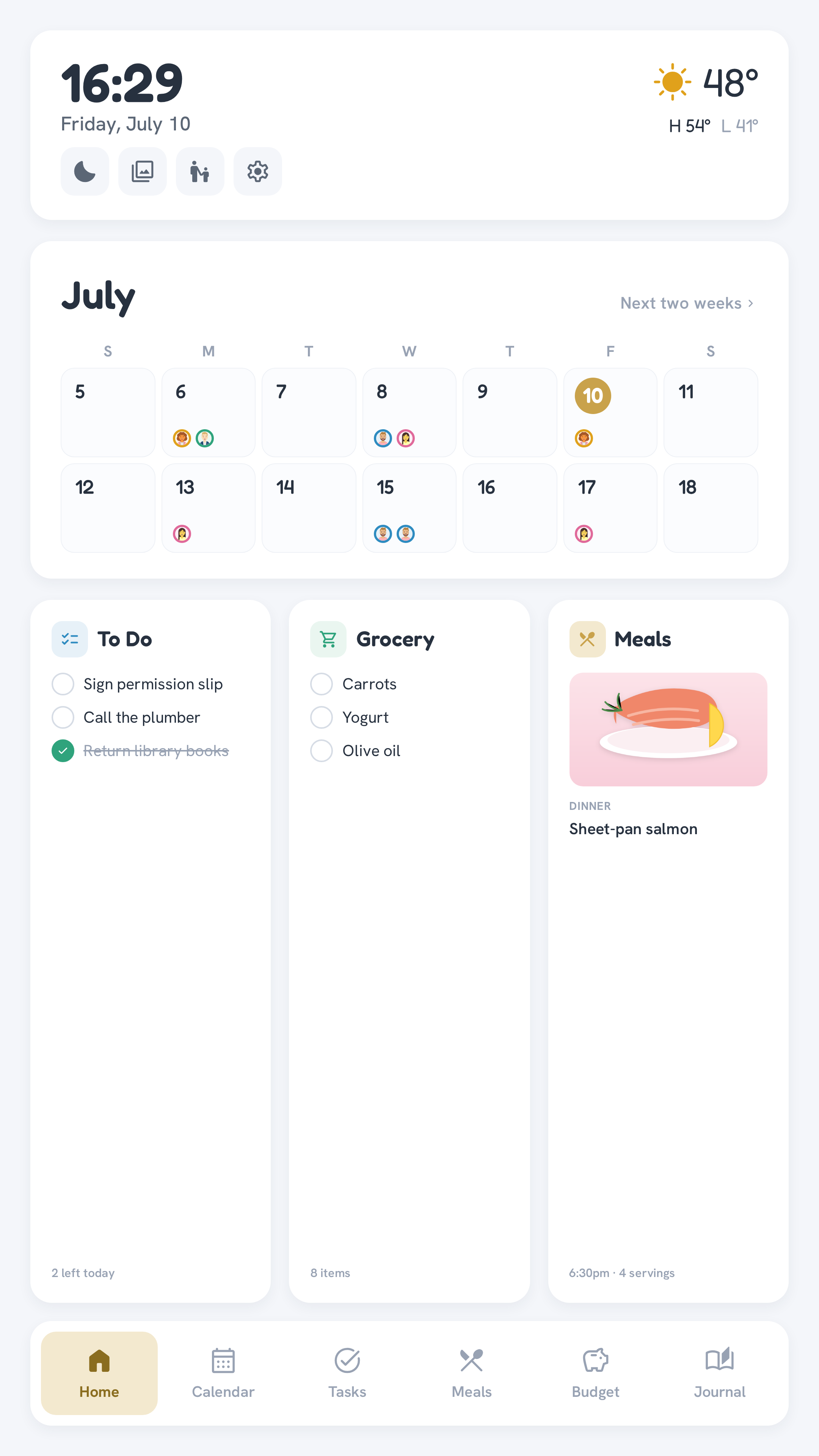
Mobile (PWA)
The companion app at /m is a separate, purpose-built page — not a responsive reflow of the wall's dense multi-column screens. It's meant to be installed to a phone's home screen (it's a proper PWA: manifest + service worker + offline app shell).
Logging in
- Pick your name from the roster.
- Enter your 4-digit PIN (set in
.envasMEMBER_PIN_<ID>— see First-time setup).
Sessions last 24 hours. Five wrong attempts locks that person out for 15 minutes.
The PIN is defense-in-depth, not your primary access control
A 4-digit PIN alone is not meaningful security on the open internet. /m should only be reachable over your own network or a mesh VPN (e.g. Tailscale) — never expose port 8080 to the public internet. The real access boundary is the network; the PIN just identifies which family member is acting.
What you can do
Once logged in, a tab switcher picks between what this app does:
- Chores — view your own Routine·Chore list and complete tasks (same points-award behavior as the wall), check your points balance.
- Journal — browse recent entries and add your own (see below).
- Rewards (parents only) — add, edit, and remove the family's custom rewards, and hide any reward from the wall. This is the one place naming a reward can happen, since it needs a keyboard; see Rewards → Adding rewards from the phone.
- Meals ↗ (only when configured) — a launcher tab that opens your Mealie app in a new tab, so you're not juggling two home-screen icons. It's a hand-off to Mealie's own web app (which keeps its own login), not an embedded view — tap it and you land in Mealie. The tab is hidden unless
MEALIE_APP_URLis set; see Mealie → Companion-app shortcut.
Parents also get a small person-with-child icon in the header (next to the notification bell) that opens the emergency info shown on the wall in Babysitter mode — parent phone numbers, emergency contacts, and notes. It's tucked in the header rather than the switcher because it's set-once config, not a daily tab, and it's hidden for everyone but parents.
Everything else (recipes, groceries, full calendar) is scoped to the wall for now — the mobile scope is deliberately narrow: quick checks, completions, and journal entries, not a full reflow of every screen. (The Meals tab is the one exception, and even it is just a shortcut out to Mealie's own app rather than a mobile port of the wall's meal grid.)
Writing a journal entry
Tap Add an entry on the Journal tab. Along with naming a reward (parents, on the Rewards tab), this is one of the few places in the whole app with actual free-text typing — and it's deliberately confined to the phone, never the wall (see Overview → Design principles).
- Photo (optional) — tap to open your camera or library. Resized and recompressed on upload; no need to worry about sending a multi-megabyte original.
- What happened? — the caption. Required.
- Tag it (optional) — Milestone, Funny Quote, School, or Health. Tap again to clear it.
- Who's this about? — tap avatars to tag whichever family members the entry involves. Separate from who's posting it (shown read-only below, under "Posting as") — so a parent can write entries about a kid who doesn't have their own login yet.
- Save.
Your own entries show a trash icon in the Journal tab's list — tap it to delete. There's no separate edit screen yet; delete and re-add if you need to fix something.
Notifications
A bell icon next to "Log out" turns push notifications on or off for this phone. Two are sent, both aimed at the members in PUSH_MEMBERS (parents, by default):
- Chores today (morning) — how many chores are still open, per kid. Not sent when everything's already done.
- What's for dinner (late afternoon) — tonight's dinner from the Mealie meal plan. Not sent when nothing's planned.
The bell only appears when the server has push configured and the PWA is reached over HTTPS — see Self-hosting → Push notifications for the one-time setup.
If the reminders get annoying, either notification can be switched off for everyone from the wall's Settings screen (parent-PIN gated) — the bell here only silences the one phone it's tapped on.
Health is visible on the wall
Unlike everything else in this app, journal entries display on the always-on wall where anyone in the room can see them — including the Health tag. If that's not what you want for a particular entry, leave it untagged or tag it something else.